What Is Amazon KDP?
Amazon Kindle Direct Publishing (KDP) is Amazon's self-publishing platform. It lets anyone publish eBooks, paperbacks, and hardcovers and sell them on the world's largest bookstore. No literary agent needed, no publishing deal, no upfront cost from Amazon's side.
KDP handles printing (for physical books), distribution, and payment processing. You upload your files, set a price, and Amazon takes care of the rest. Someone buys your book, Amazon prints and ships it (print-on-demand) or delivers the eBook to their Kindle, and you earn a royalty on every sale.
The platform is free to use. Amazon takes a percentage of each sale, so there's no cost to create an account, upload your book, or list it for sale. You only spend money on creating your manuscript and cover.
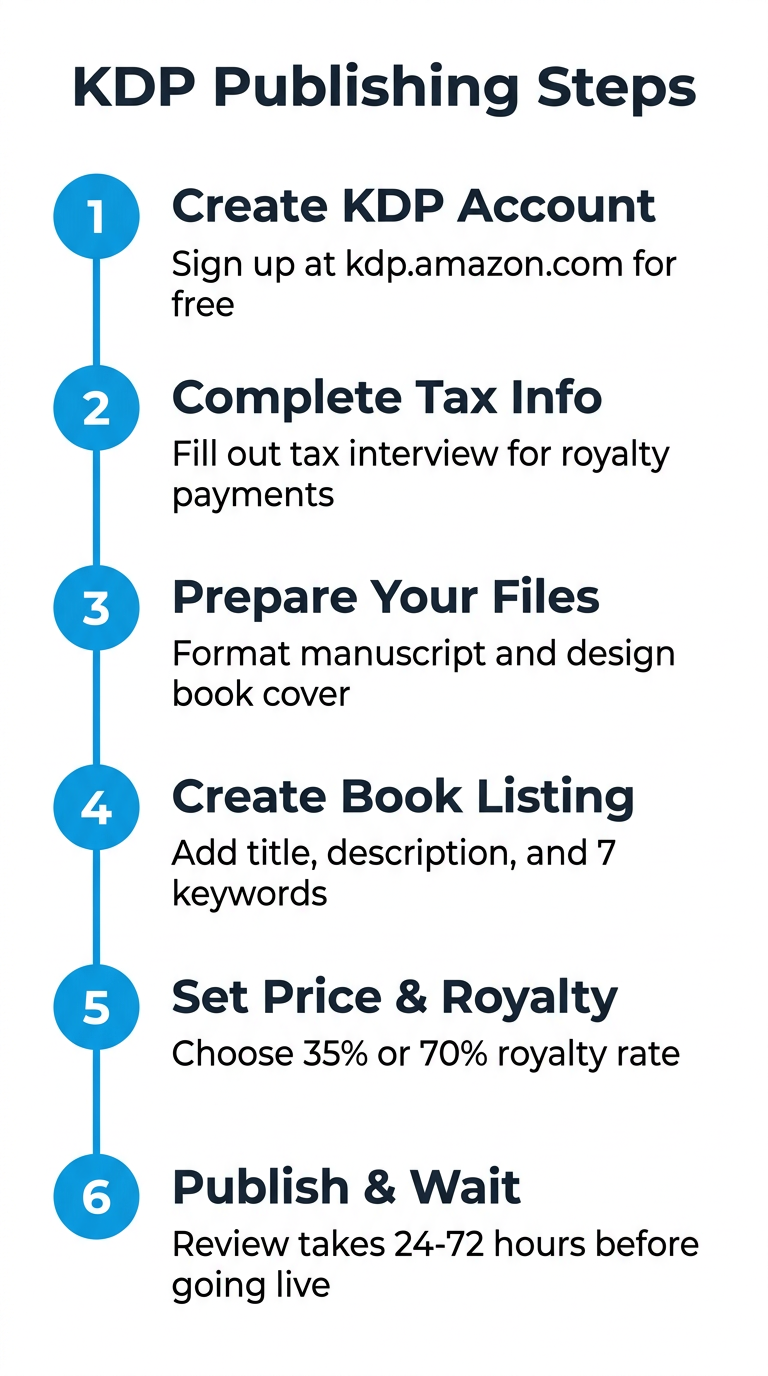
Step 1: Set Up Your KDP Account
Go to kdp.amazon.com and sign in with your existing Amazon account, or create a new one. Once you're in, you'll need to complete your account details:
- Tax information: Amazon requires a tax interview (W-9 for US authors, W-8BEN for international). This determines your tax withholding rate. Complete it before publishing or your royalties will be held.
- Bank account: Where Amazon sends your royalty payments. You can set up different bank accounts for different marketplaces (US, UK, EU, etc.), or use a single account and receive payments via electronic funds transfer.
- Author/publisher name: This appears on your book listings. You can use your real name, a pen name, or a publisher imprint. You can change this per-book, so don't overthink it now.
Account setup takes about 15 minutes. Amazon typically verifies your tax information within 24-48 hours.
Step 2: Prepare Your Manuscript
KDP accepts manuscripts in several formats, but some work better than others. Here's what works best:
For eBooks (Kindle)
- DOCX: The most reliable format. Use a clean Word document with proper heading styles (Heading 1 for chapter titles, Heading 2 for sections). KDP converts this to their Kindle format automatically.
- EPUB: If you want more control over formatting, you can upload an EPUB file directly. This is the standard eBook format and gives you pixel-level control over layout.
- KPF (Kindle Package Format): Created using Amazon's free Kindle Create tool. Good for illustrated books or complex layouts.
For Paperbacks and Hardcovers
- PDF: Required for print books. Your PDF must match your chosen trim size exactly (e.g., 6" x 9" for a standard trade paperback). Embed all fonts, use CMYK color space for color interiors, and set margins according to KDP's specifications based on your page count.
Manuscript Formatting Essentials
- Font: Use a standard, readable font. Georgia, Garamond, or Times New Roman at 11-12pt for body text. Avoid decorative fonts for body copy.
- Margins: KDP has minimum margin requirements that vary by page count and trim size. For a 6" x 9" book with 200 pages, expect minimum inside margins of about 0.75" and outside margins of at least 0.25".
- Front matter: Include a title page, copyright page, and table of contents at minimum. A dedication and acknowledgments are optional but common.
- Back matter: An "About the Author" section and a page promoting your other books (if applicable) help drive future sales.
- Page numbers: Required for print. Start numbering from the first chapter, not the title page.
Getting formatting right is one of the trickiest parts of self-publishing, especially for print books where a misaligned margin means a rejected upload. Tools like BookSmith generate KDP-ready files (DOCX, PDF, and EPUB) with correct margins, fonts, and front/back matter built in, which saves hours of manual formatting work.
Step 3: Create Your Book Cover
Your cover is the single most important marketing asset for your book. People really do judge books by their covers, and a bad one signals an amateur product, even if the writing inside is great.
eBook Cover Specifications
- Dimensions: 1600 x 2560 pixels (ideal). Minimum 625 x 1000 pixels. The height-to-width ratio must be 1.6:1.
- File format: JPEG or TIFF
- File size: Under 50 MB
- Color space: RGB
Print Cover Specifications
Print covers are more complex because they include the front, spine, and back cover as a single file:
- Format: PDF (preferred) or JPEG
- Bleed: 0.125" on all sides
- Spine width: Calculated based on page count and paper type. KDP provides a cover calculator tool.
- Resolution: 300 DPI minimum
- Color space: CMYK (for color covers on white paper) or RGB (for cream paper)
You have three main options for getting a cover: hire a designer on Fiverr or 99designs ($50-$500+), use Amazon's free Cover Creator tool (limited templates, looks generic), or use a dedicated cover generation tool. Budget at least $100 for a professional-looking cover if you go the designer route. It's not the place to cut corners.
Step 4: Create Your KDP Listing
Once your files are ready, click "Create" in your KDP dashboard and choose your format (eBook, paperback, or hardcover). The listing process has three sections:
Book Details
- Title and subtitle: Your main title should be clear and searchable. Use your subtitle to include relevant keywords naturally. For nonfiction, the subtitle often describes the book's promise (e.g., "A Step-by-Step Guide to Building Your First Online Business").
- Author name: Your name or pen name. Consistent across all your books if you're building a brand.
- Description: Up to 4,000 characters. This is your sales page. Write it like ad copy, not a book report. Lead with the hook, describe what the reader will get, and end with a call to action. You can use basic HTML formatting (bold, italics, headings). Check out our guide on writing book descriptions that sell for a detailed breakdown.
- Keywords: You get 7 keyword phrases (up to 50 characters each). These directly affect how readers find your book in Amazon search. Don't repeat words already in your title. Focus on phrases readers actually search for. Our KDP keywords guide covers this in depth.
- Categories: You can select up to three browse categories. Pick the most specific, relevant categories where your book can compete. A #1 ranking in a niche category is more valuable than being invisible in a broad one.
Content Upload
Upload your manuscript and cover files. KDP runs an automated review and flags issues like missing fonts, images below 300 DPI, or margins that are too narrow. Use the online previewer to check every page before proceeding. For print books, order a proof copy ($3-5 + shipping) to see how it actually looks before going live.
Pricing and Distribution
You set your price and choose your royalty plan here. More on that in the next section.
Step 5: Set Your Price and Royalty Option
KDP offers two royalty options for eBooks, and the choice between them affects both your earnings and your pricing strategy.
The 35% Royalty Option
- Available at any price point ($0.99 to $200.00)
- No delivery cost deducted
- Available in all KDP marketplaces
- Best for: books priced below $2.99 or above $9.99, or short books with large file sizes
The 70% Royalty Option
- Available only for books priced $2.99 to $9.99
- A delivery cost is deducted (based on file size, about $0.06 per MB delivered)
- Requires your book to be priced at least 20% below the print list price
- Available in select marketplaces (US, UK, DE, FR, ES, IT, NL, JP, BR, MX, CA, IN, AU)
- Requires enrollment in KDP Select (optional but recommended, gives Kindle Unlimited access)
- Best for: most books. A $4.99 eBook at 70% earns roughly $3.44 per sale versus $1.75 at 35%
Print Book Royalties
Paperback and hardcover royalties work differently. Your royalty is 60% of the list price minus the printing cost. Printing cost depends on page count, ink type (black & white or color), and marketplace. For a 200-page black-and-white paperback sold at $14.99 in the US, expect a royalty of about $5-6 per copy.
Pricing Strategy
For your first book, consider these starting points:
- eBook: $2.99 to $4.99 for fiction, $4.99 to $9.99 for nonfiction. Price lower if you're building an audience, higher if you're established or the content has clear monetary value.
- Paperback: $12.99 to $17.99 for most books. Calculate your printing cost first and make sure you're netting at least $3-4 per sale.
- Hardcover: $24.99 to $29.99. Higher perceived value, but lower sales volume. Good to have as an option but don't expect it to be your primary format.
You can change your price at any time, so don't agonize over it. Many authors launch at a lower "introductory" price to build reviews, then raise it after 20-30 reviews.
Step 6: KDP Select, Yes or No?
KDP Select is an optional program that enrolls your eBook in Kindle Unlimited (KU), Amazon's subscription reading service. Here's the trade-off:
What you get:
- Your book is available to millions of Kindle Unlimited subscribers at no extra cost to them
- You earn royalties based on pages read (currently about $0.004-0.005 per page, so a 300-page book fully read earns $1.20-$1.50)
- Access to promotional tools: Kindle Countdown Deals and Free Book Promotions
- Eligibility for the 70% royalty in additional marketplaces
What you give up:
- Exclusivity: you cannot sell your eBook on any other platform (Apple Books, Kobo, Barnes & Noble, Google Play, your own website) for the 90-day enrollment period
- KU reads often replace full-price purchases, so your per-read revenue may be lower than a direct sale
The general advice: If you're a new author with no existing audience on other platforms, KDP Select is usually worth it. Kindle Unlimited drives a lot of discovery and page-read income, especially in genres like romance, thriller, science fiction, and fantasy. If you already have readers on other platforms or write in genres where KU is less dominant (literary fiction, niche nonfiction), going "wide" across multiple retailers is probably the better play.
Step 7: Hit Publish
Once your listing is complete, click "Publish Your Kindle eBook" (or paperback/hardcover). Here's what happens next:
- Review period: Amazon reviews your book to ensure it meets their content guidelines. This typically takes 24-72 hours, but can be faster (sometimes under 12 hours for eBooks).
- Goes live: Your book appears on Amazon with its own product page. It gets an ASIN (Amazon Standard Identification Number) automatically.
- Author Central: Once your book is live, claim it on Amazon Author Central to add your author bio, photo, and link all your books under one profile.
After publishing, you can still make changes. Update your manuscript, adjust your price, change your description or keywords, all from your KDP dashboard. Changes typically take 24-48 hours to propagate.
Step 8: Get Your ISBN (Or Don't)
ISBNs confuse a lot of new self-publishers, so here's the simple version:
- eBooks on KDP: You don't need an ISBN. Amazon assigns a free ASIN that serves the same purpose.
- Paperbacks on KDP: Amazon provides a free ISBN. The imprint will show as "Independently Published." If you'd rather have your own publisher name, purchase your own ISBN from Bowker (US), Nielsen (UK), or your country's ISBN agency.
- Selling outside Amazon: If you plan to distribute to bookstores, libraries, or other retailers, you'll need your own ISBN. Amazon's free ISBNs are exclusive to their platform.
For most self-publishers starting out, Amazon's free ISBN is perfectly fine. You can always purchase your own later if you expand distribution.
After Publishing: Marketing Basics
Publishing your book is the beginning, not the end. Without marketing, even a great book sits at the bottom of Amazon's catalog where nobody finds it. Here's what actually moves the needle for a new self-published author:
Get Reviews Early
Reviews are social proof. Aim for 20-30 reviews as fast as you can. Send copies to friends, family, and colleagues who read your genre. Use Amazon's "Request a Review" button for every buyer, and reach out to book bloggers and reviewers in your niche. Never pay for reviews or use review swap services. Amazon will catch it and penalize your book.
Optimize Your Listing
Your book's title, subtitle, description, keywords, and categories are all searchable. Treat them like SEO. Research what readers in your genre actually search for on Amazon and incorporate those terms naturally. Use a tool like our free book title generator to brainstorm titles that balance creativity with discoverability.
Amazon Advertising
Amazon Ads (formerly AMS) lets you run pay-per-click ads that show up in Amazon search results and on product pages. Start with Sponsored Products ads targeting keywords related to your book and comparable authors in your genre. Set a daily budget of $5-10, keep an eye on your ACoS (Advertising Cost of Sale), and put more money behind what works. Most successful self-published authors spend 20-40% of their royalties on advertising.
Build Your Platform
An email list is the most valuable long-term asset for an author. Offer a free chapter, short story, or companion resource in exchange for email signups. Use your book's back matter to drive readers to your list. When you publish your next book, your list is the first audience you notify, and the most likely to buy on launch day.
Common KDP Mistakes to Avoid
- Skipping the proof copy: Always order a physical proof of your paperback. Screen previews miss margin issues, color shifts, and spine alignment problems that are obvious in print.
- Using low-resolution cover images: Anything below 300 DPI will look blurry in print. Thumbnails on Amazon are tiny, so your cover needs to be readable at postage-stamp size too.
- Ignoring your book description: Most authors spend months on their manuscript and five minutes on the description. Flip that ratio. Your description is the primary conversion tool on your product page.
- Pricing too high or too low: A $0.99 eBook signals low quality unless it's a deliberate promotional price. A $14.99 eBook from an unknown author is too much. Study your genre's pricing norms before choosing.
- Not using all 7 keywords: Every empty keyword slot is missed discoverability. Fill all seven with relevant search phrases.
- Publishing before the book is ready: No amount of marketing fixes a book with typos, formatting errors, or a bad cover. Get at least one round of professional editing and honest beta feedback before hitting publish.
How Long Does the Whole Process Take?
Here's a realistic timeline for self-publishing on KDP:
- Writing the manuscript: 1 to 12 months depending on length, genre, and your writing pace. A 50,000-word novel takes most people 3-6 months. Using AI-assisted writing tools can compress this significantly.
- Editing: 2 to 8 weeks. Plan for at least a developmental edit and a copyedit/proofread pass.
- Cover design: 1 to 3 weeks if hiring a designer. A few days if using AI generation or templates.
- Formatting: 1 day to 1 week. Faster with automated tools, longer if doing it manually in Word or InDesign.
- KDP account setup and listing: 1-2 hours.
- Amazon review: 24-72 hours.
From finished, edited manuscript to live on Amazon: about 1-2 weeks if everything goes smoothly. The bottleneck is almost always the manuscript and editing, not the publishing process itself.
What About Costs?
Publishing on KDP itself is free. Your costs are in preparation:
- Editing: $500 to $3,000+ depending on book length and editor experience
- Cover design: $50 to $500+ depending on approach
- Formatting: $0 (DIY) to $200 (professional formatter)
- ISBN: $0 (Amazon's free option) to $125 (your own from Bowker)
- Proof copies: $3-10 per copy
- Marketing: $0 and up. You can market for free with social media and email, or invest in Amazon Ads.
A realistic minimum budget is $300-500 for a basic but professional result. For a deeper breakdown, see our full guide on how much it costs to self-publish a book.
Quick Reference Checklist
Here's everything in order, start to finish:
- Create your KDP account and complete tax/banking setup
- Write and edit your manuscript (or use an AI-assisted workflow)
- Format your manuscript for Kindle (DOCX or EPUB) and print (PDF)
- Design or commission your cover (1600x2560px for eBook, full wrap for print)
- Create your KDP listing (title, description, keywords, categories)
- Upload manuscript and cover files
- Preview your book using KDP's online previewer
- Set your price and choose your royalty option
- Decide on KDP Select enrollment
- Publish and wait for Amazon's review (24-72 hours)
- Order a proof copy of your paperback
- Claim your Author Central profile
- Start gathering reviews and running Amazon Ads
Self-publishing on Amazon KDP has never been easier. The platform handles printing, distribution, and payment. Your job is to write a book worth reading and help the right readers find it. Follow the steps above, sidestep the common mistakes, and you'll have your book live on the world's biggest bookstore within weeks.